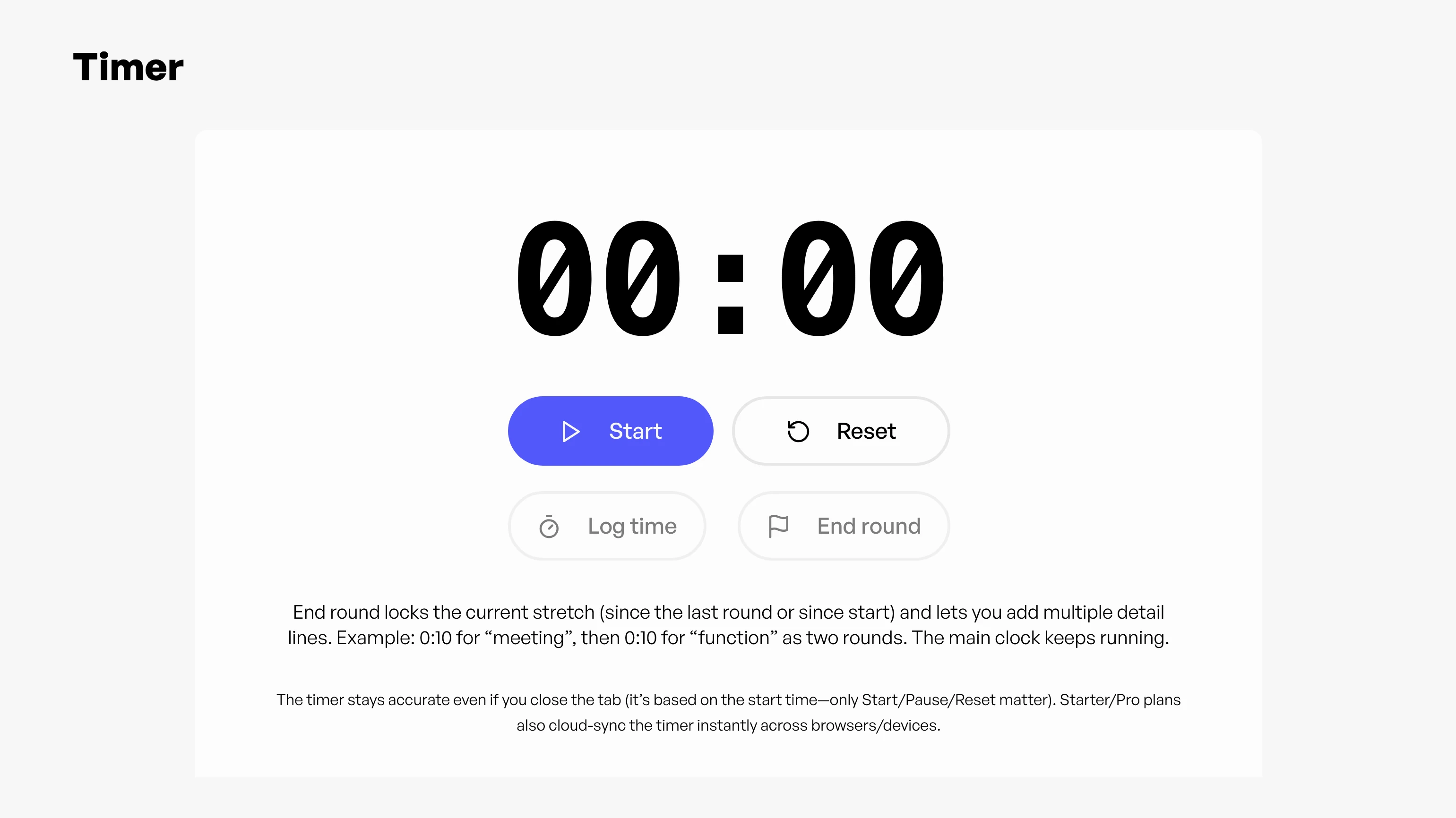
Track billable hours as you work

Track billable time in real time with start, pause, and reset, then log entries when you're ready.

  • Start, pause & log in one click
  • Survives refreshes & tab switches
  • Optional always-on-top desktop app
Start free See pricing

Free plan, no credit card required.

Freelance time tracker with start, pause, and log time in Workey

Timer / Work & projects

Start free

Capture every billable minute

  • Start, pause, log

    Start the Workey freelance time tracker when you begin work and pause when you stop. The clock runs until you reset it, so you don't lose minutes mid-task.

  • Survives everything

    The timer keeps its state across page refreshes and navigation, so switching tabs never loses tracked time.

  • Entries without math

    When you pause, click Log time to create a time entry that appears on your Timesheet and in invoice data, no manual math or rounding.

Timer that won’t reset unless you tell it to

The Workey timer is designed to be reliable. If you refresh the page, close the tab, or navigate to another part of the app, your timer state is preserved so you don’t lose tracked time.

What is preserved

The timer continues running (or stays paused) with the correct elapsed time when you come back.

What resets it

Only explicit actions: starting a new session, pressing Reset, or saving the session as a time entry.

How you control it

Use Pause to stop the clock, then optionally click Log time to create a time entry. Nothing changes automatically without your input.

Timer vs timesheet: when to use each

Use the timer while you work in real time so you don't lose billable minutes. Use the Timesheet to review your week, backfill forgotten days, and fix mistakes before you invoice. Both write to the same project-linked hours.

Create a time entry after you pause

Turning tracked time into a billable entry takes seconds, all without leaving the timer screen.

  1. 1

    Pause the timer

    Pause stops the clock; your elapsed time stays put until you decide what to do with it.

  2. 2

    Click Log time

    Turn the elapsed session into a time entry with one click.

  3. 3

    Pick the project and save

    Choose the project, optionally edit the description, and save. The entry lands on your Timesheet.
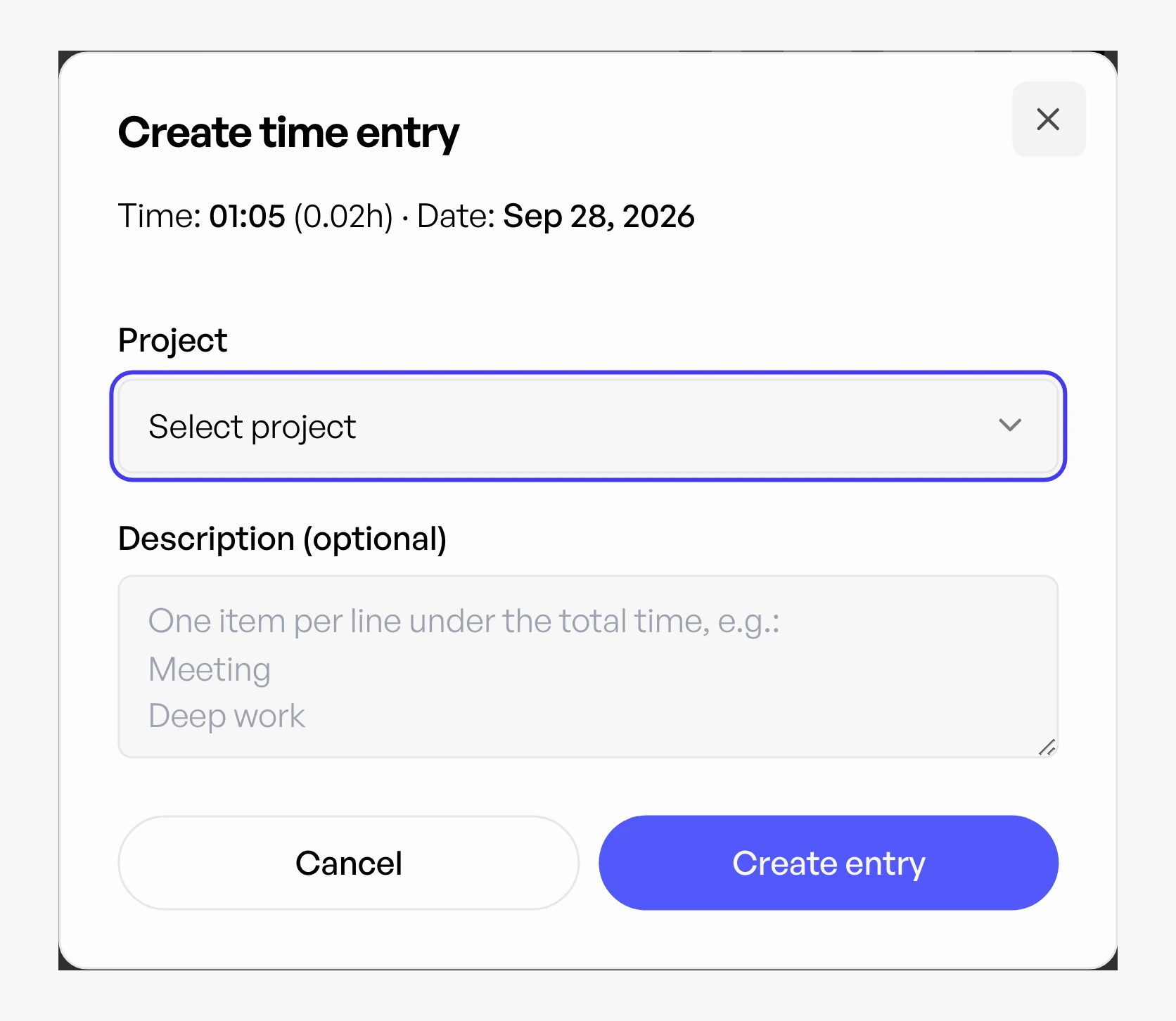
Create time entry from timer pause in Workey

From timer to invoice in one flow

  1. Timer
  2. Timesheet
  3. Invoice

Start the Timer while you work, log the session to your Timesheet, then generate an Invoice from the same hours, no copy-pasting between tools.

Build a repeatable billing workflow with the freelance time-tracking guide.

Questions about timer

Does the Workey timer survive a page refresh?

Yes. If you refresh the page, close the tab, or navigate elsewhere in the app, your timer state is preserved. The clock keeps running or stays paused with the correct elapsed time.

Is there a desktop timer app for freelancers?

Yes. Workey offers an optional desktop timer that stays on top of other windows, syncs with your dashboard projects, and logs time entries to the same account.

Do I have to use the timer, or can I log time manually?

You can do both. The timer is ideal for real-time tracking while you work, but you can also log or adjust time manually in the timesheet when needed.

What happens when I stop or pause the timer?

When you pause the timer, Workey can log the elapsed time for that session (via the Log time action) and attach it to the project you chose so it appears on your timesheet and in invoice data.

Can I switch projects while the timer is running?

To keep your records clean, it's best to stop or pause the timer for one project and then start a new timer for the next project so each time entry is clearly linked.

Try Timer on your own work

Use it alongside the rest of Workey on a free account.

Start free